Design your very own cross stitch patterns.
Cross Stitch Pattern Creator
Includes 4 sample cross stitch patterns. Free to download. Activation costs $2.99.
A tablet is highly recommended due to cross stitch pattern dimensions.
Build personalized cross stitch patterns with the Cross Stitch Pattern Creator
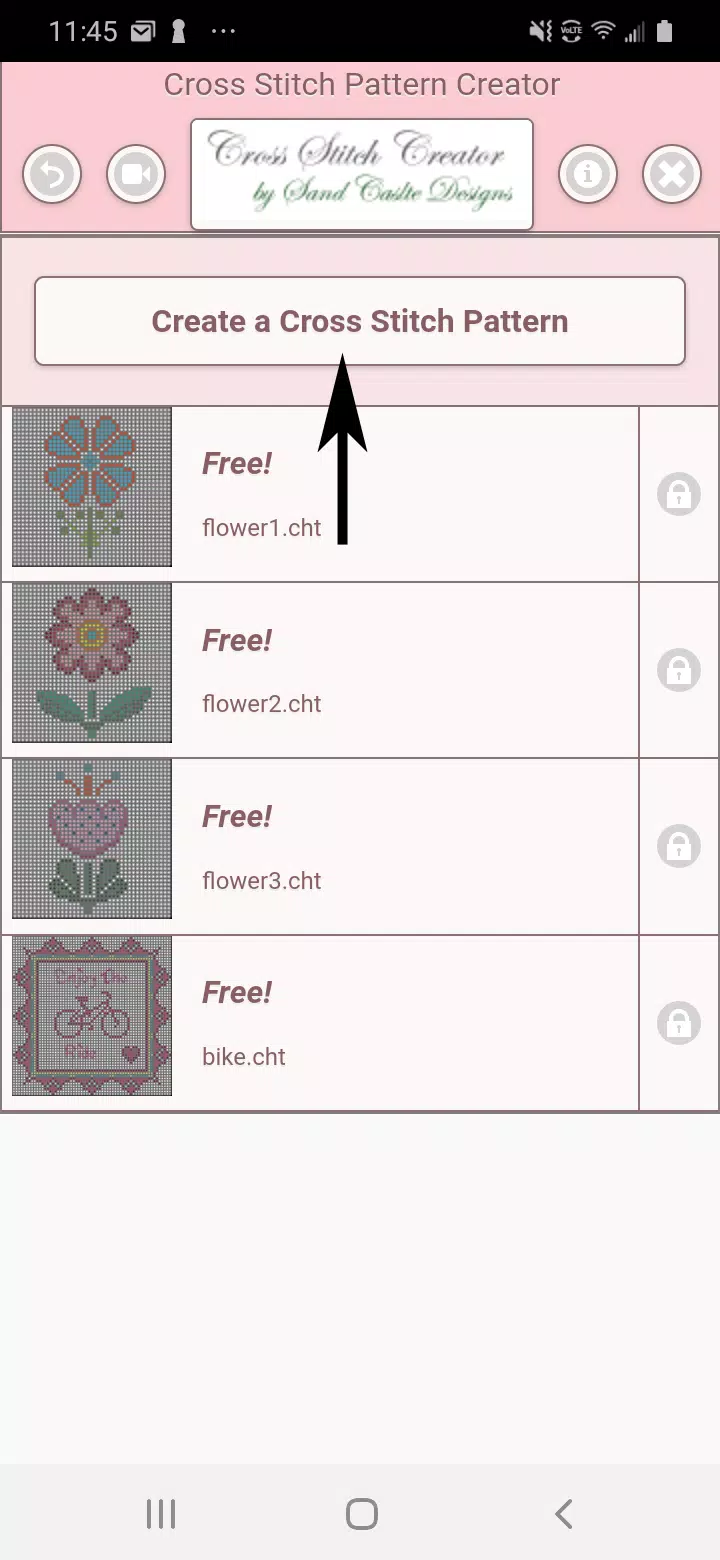
To design cross stitch patterns, click the Create a Cross Stitch Pattern button.
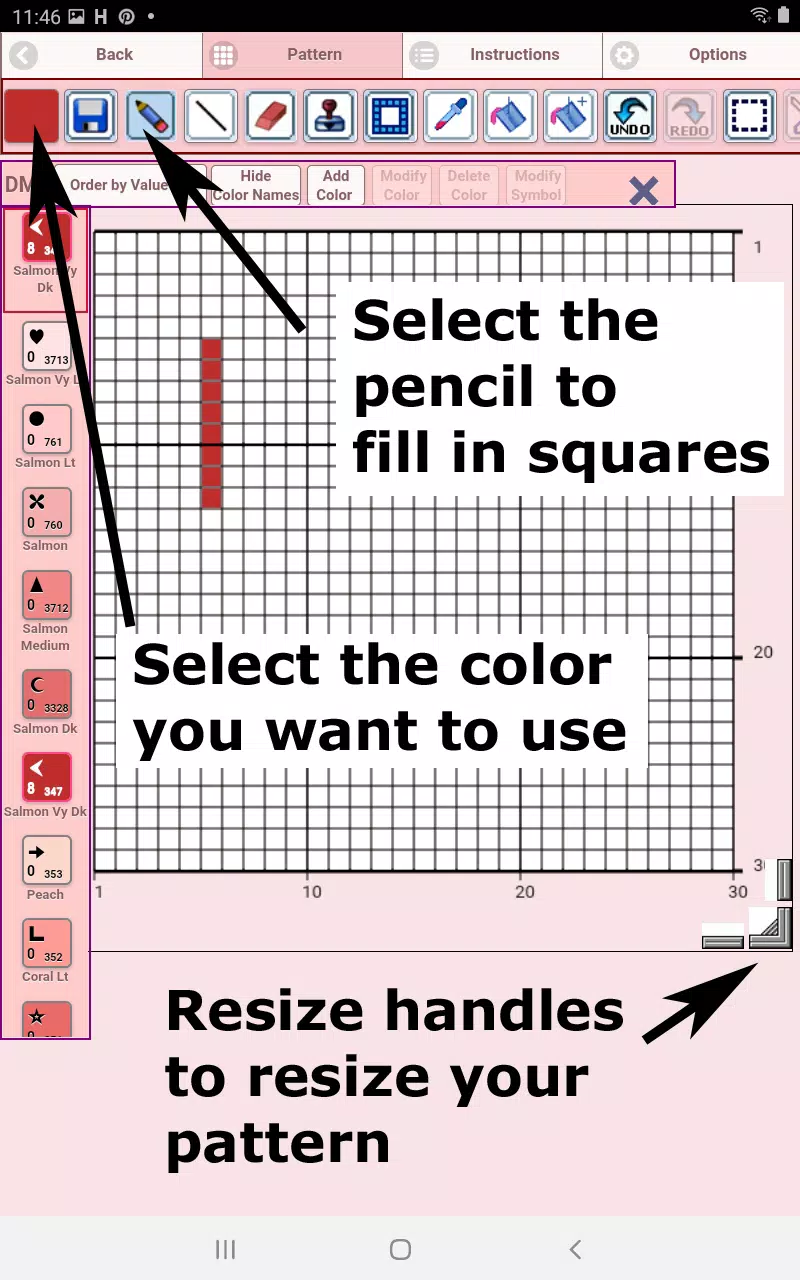
The Cross Stitch Pattern Editor will open. Fill squares with DMC floss colors.
You can even add custom colors if desired.
Getting started - Use the pencil tool to fill squares in your pattern. Use the Eraser to remove filled squares.
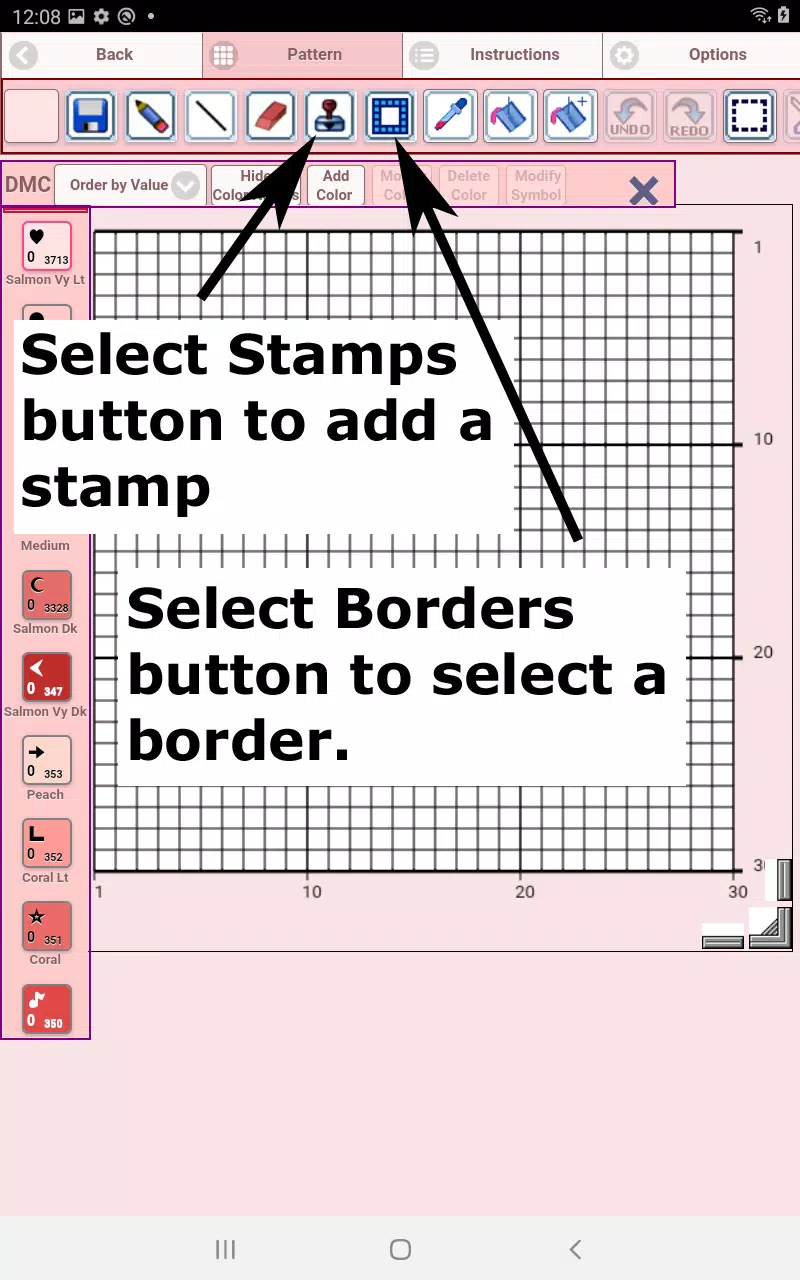
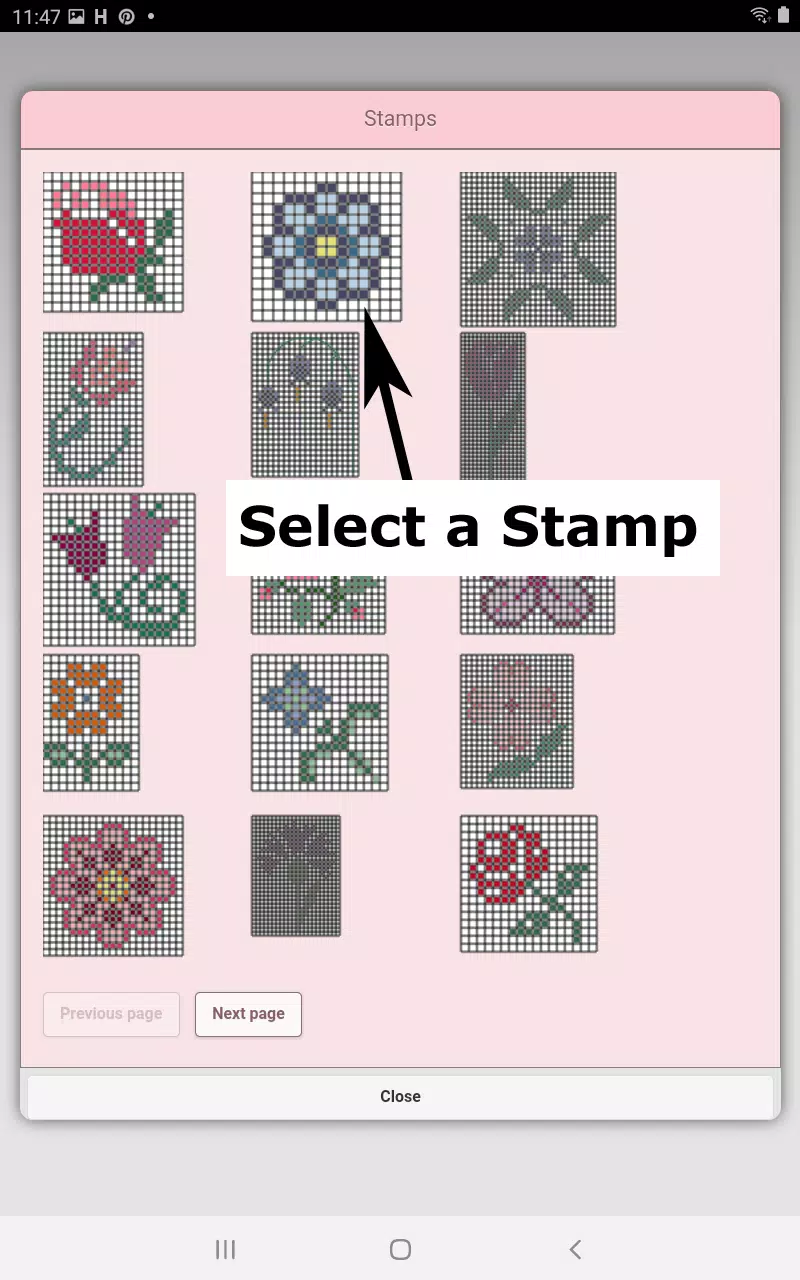
Choose from over 80 stamps and borders to enhance your cross stitch pattern.
The button bar includes these tools from left to right:
DMC Floss Color button - select your preferred floss color
Save button - saves your pattern
Pencil button - fills squares on your cross stitch pattern
Eraser button - removes filled squares and backstitch lines
Backstitch button - First choose a color, then click Backstitch to add lines
Backstitch move button - Drag selected backstitches to new positions
Backstitch move stitch end - Select a backstitch to reveal blue endpoints, then adjust their placement
Stamps button - small decorative stamps to embellish your pattern
Borders button - decorative borders that automatically wrap around your pattern
Dropper button - samples colors from your pattern for reuse
Bucket button - fills a selected area with the active color
Bucket+ button - replaces one color with another throughout the pattern
Undo button - reverses your most recent changes
Redo button - restores changes you previously undone
Selection box button - defines areas for cutting, copying, rotating, or flipping
Cut button - First select an area with the Selection box, then cut to remove it
Copy button - First select an area with the Selection box, then copy to clipboard
Paste button - Inserts copied content, which you can then position as needed
Rotate button - rotates selected areas or the entire pattern
Flip right/left button - mirrors selected areas or the whole pattern horizontally
Flip top/bottom button - mirrors selected areas or the whole pattern vertically
Zoom in button - enlarges the pattern view
Zoom out button - reduces the pattern view
Symbols button - shows unique symbols representing each color value
Picture button - converts images from your device into patterns
Social media button - share patterns via email, text, and other platforms
Resize bars - located at the bottom right corner; drag to adjust pattern size
Option settings - customize grid colors, switch between Solid and X fill styles,
hide row/column counters
Instruction page - shows DMC colors used and finished sizes for various
Aida Cloth counts
Finished Product page - previews your completed cross stitch design,
including adjustable fabric colors